Assignment Grading Options
This section explains how to assess learner submissions in Coursebox using flexible grading options. You’ll learn how to configure assignments for percentage-based grading or competency-based outcomes, enable AI-assisted feedback, and apply moderation where required—helping you deliver fair, consistent, and standards-aligned assessment across your courses.
Watch the tutorial videos found in our YouTube Video Library.
View Submission
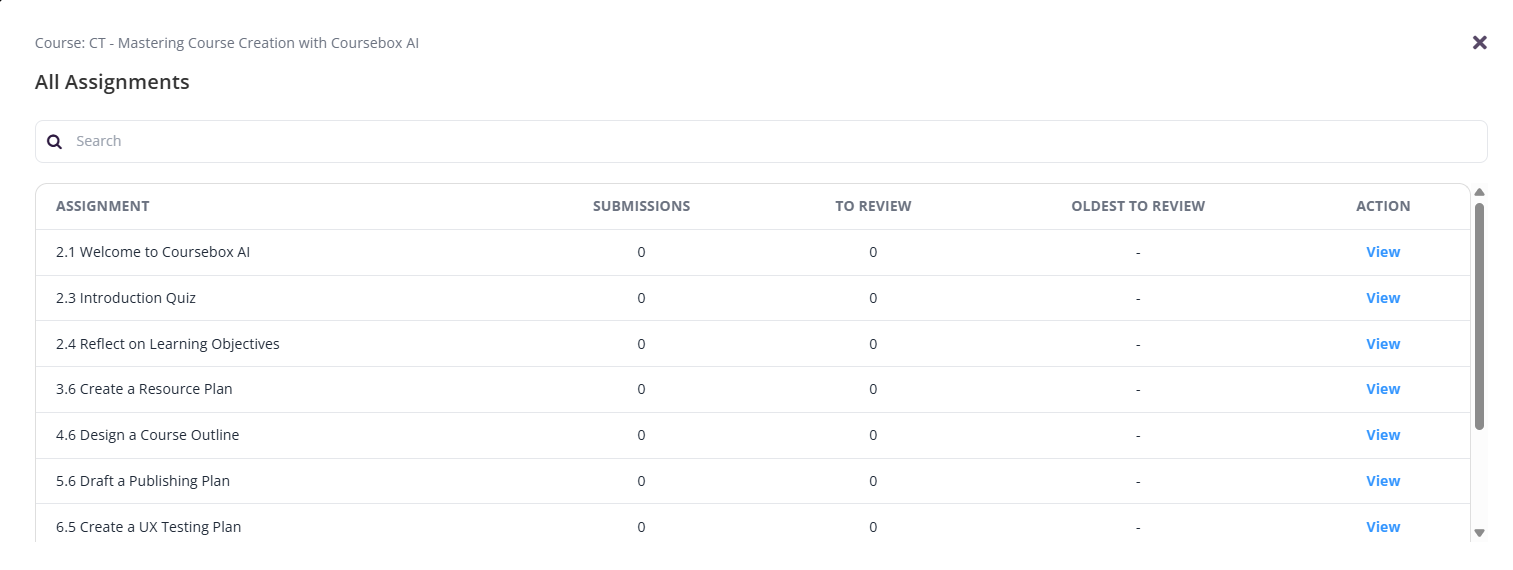
In your Course, from the top menu select the Tick Icon to view Submissions to review.

The following screen will appear:
Use Percentage Grading
Use percentage grading to evaluate student performance using a numeric score (e.g., 85%). This guide outlines how to access and configure grading settings to ensure consistency across your assessments.
Navigate to your course from the Courses tab, and select the course you want to work on.
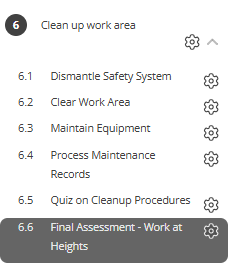
Click into the assignment to access its configuration settings.
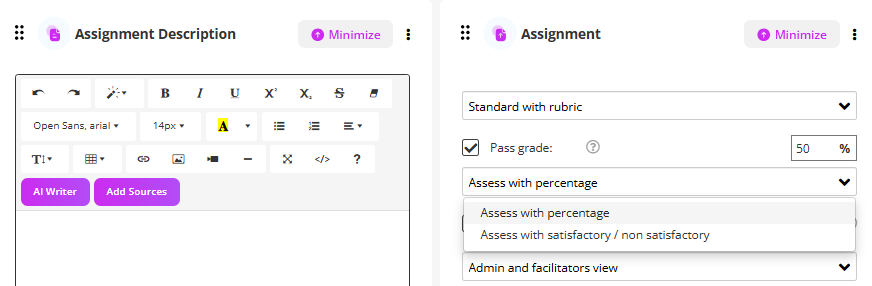
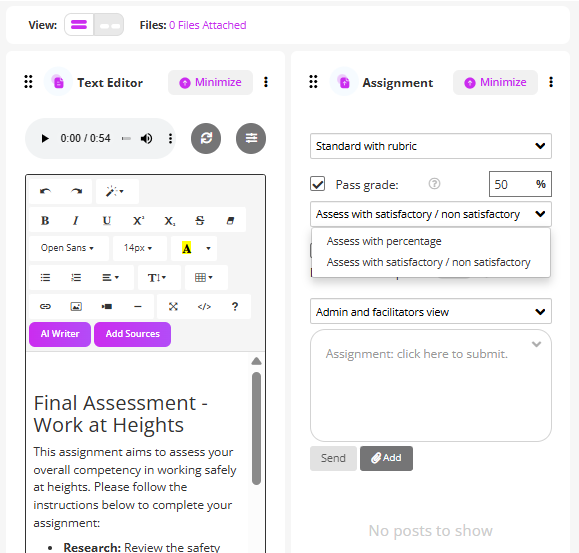
On the assessment page, go to assessment settings and select Standard with Rubric.
From the drop down, select the Assess with Percentage
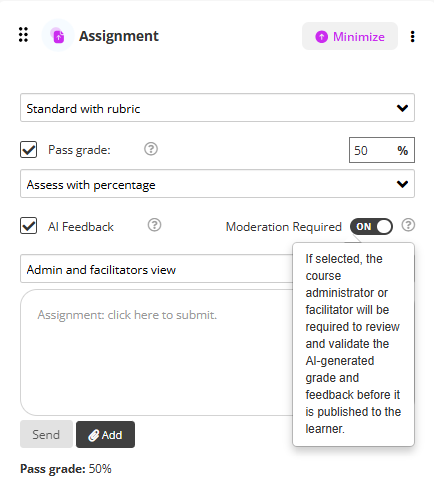
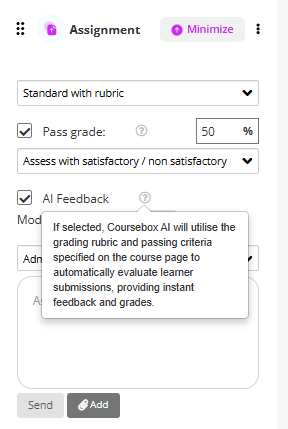
You can enable AI Feedback by checking the box
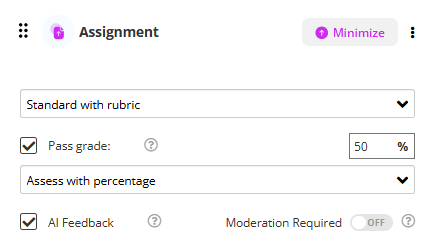
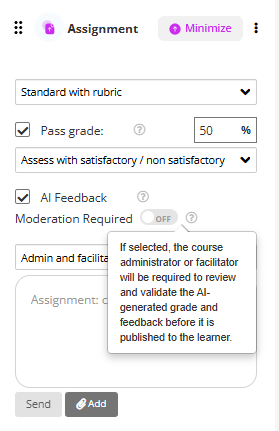
You can also allow facilitators to review the AI Feedback, by enabling the moderation feature.
For RTO's - Use Satisfactory/Not-Yet Satisfactory Grading
Coursebox enables RTOs to customise grading settings to align with competency-based assessment practices. You can define grading labels such as "Satisfactory" or "Not Yet Satisfactory," control feedback visibility, and manage how grades are submitted and displayed to learners. This guide outlines how to access and configure grading settings to ensure consistency and compliance across your assessments.
Navigate to your course from the Courses tab, and select the course you want to work on.
Click into the assignment to access its configuration settings.
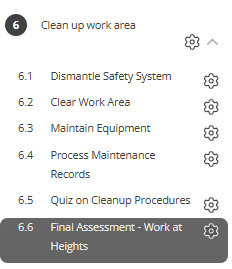
On the assessment page, go to assessment settings and select Standard with Rubric.
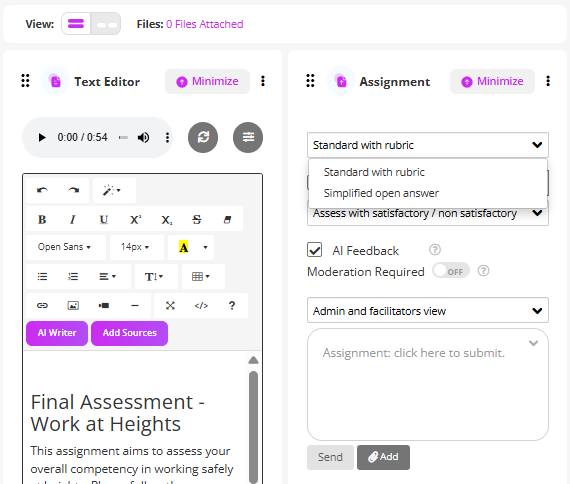
Select the grading scale Satisfactory/Not Yet Satisfactory.
You can enable AI Feedback by checking the box
You can also allow facilitators to review the AI Feedback, by enabling the moderation feature.
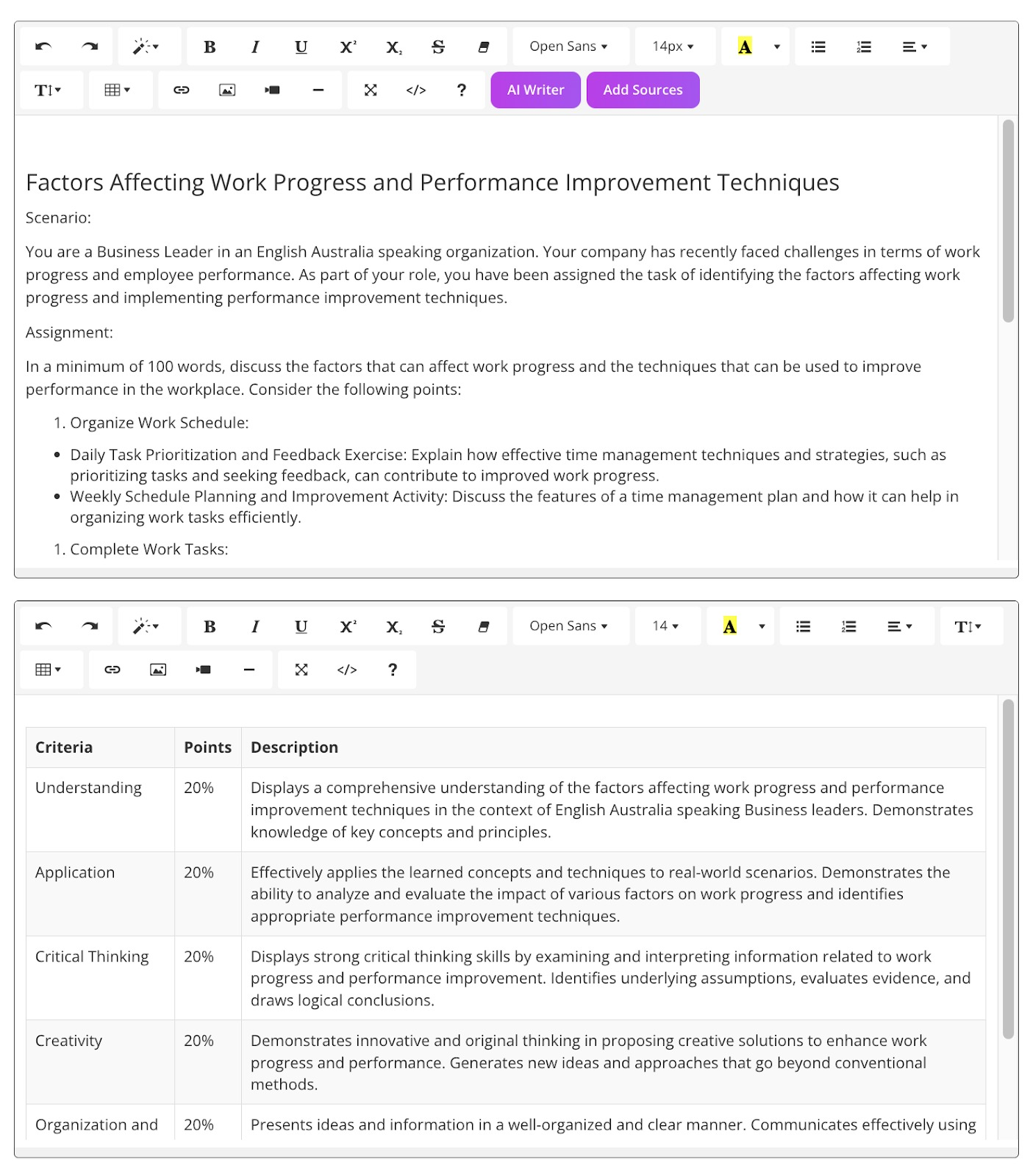
Example of Assignment with Rubric
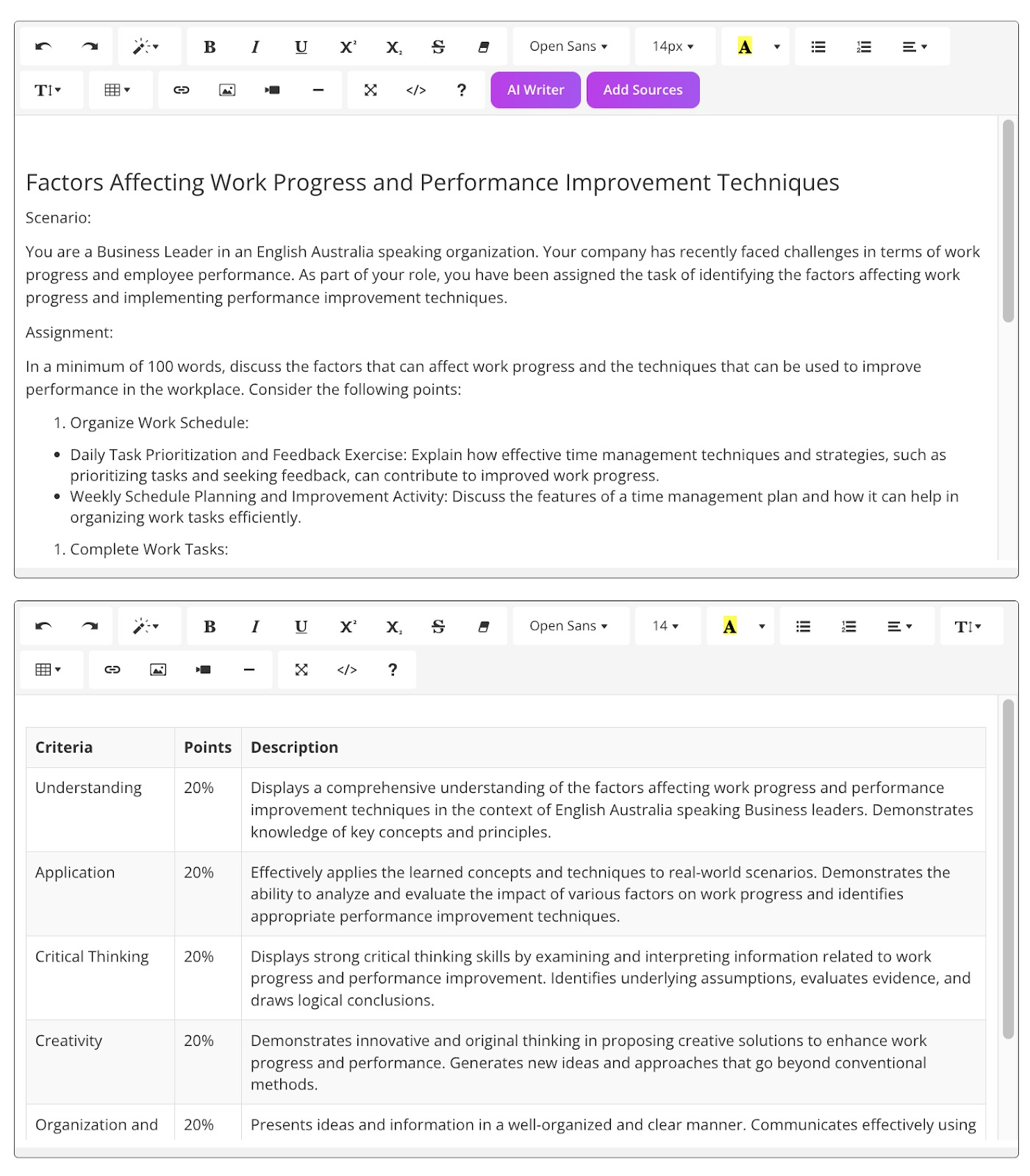
Example of Assignment without Rubric