
For RTO's - Content Generation using the Unit of Competency URL or PDF File
This topic explains how Registered Training Organisations (RTOs) can use Coursebox AI to generate compliant course content directly from a nationally recognised Unit of Competency. It covers creating courses using a training.gov.au URL or an uploaded PDF, helping ensure alignment with unit requirements while streamlining course development.
Watch the video below, or explore more tutorials in our Tutorial Video Library.
Step 1: Start a new RTO training package
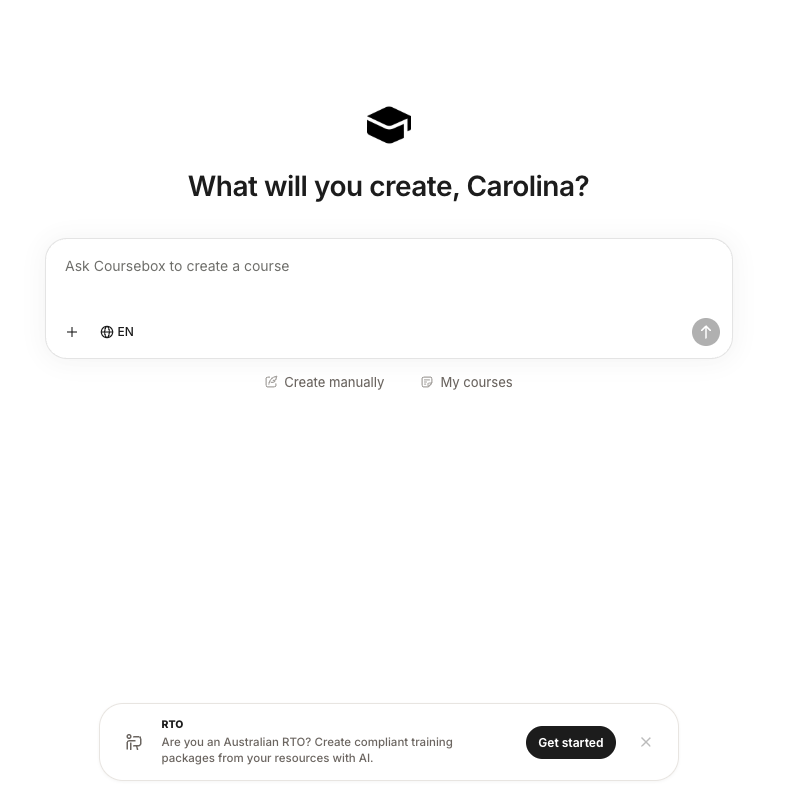
From the Coursebox home screen, look for the RTO banner at the bottom of the page:
RTO — Are you an Australian RTO? Create compliant training packages from your resources with AI.
Click Get started to open the RTO training package builder.
If you'd rather build something outside the RTO flow, you can still use Ask Coursebox to create a course, Create manually, or open My courses from the same screen.
Step 2: Provide your Unit of Competency
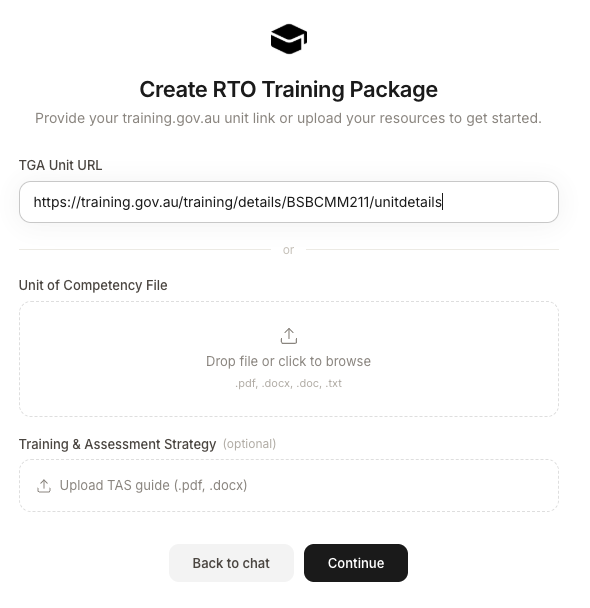
On the Create RTO Training Package screen, you can supply your unit in one of two ways. You only need to use one — whichever is easier for you.
Option A — Paste a training.gov.au URL
Go to training.gov.au and open the relevant Unit of Competency.
Copy the unit details URL (for example,
https://training.gov.au/training/details/BSBCMM211/unitdetails).Paste it into the TGA Unit URL field.
Option B — Upload a Unit of Competency file
If you already have the unit saved locally, drag and drop it into the Unit of Competency File area, or click to browse. Accepted formats are .pdf, .docx, .doc, and .txt.
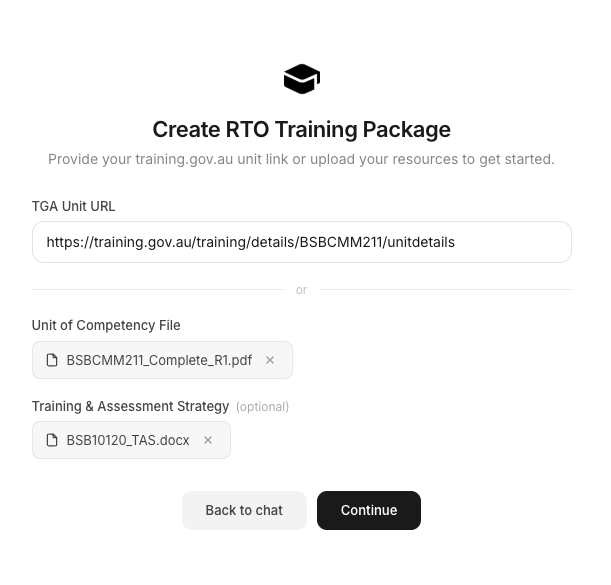
Optional — Add your Training & Assessment Strategy
If you have a Training & Assessment Strategy (TAS) document, upload it under Training & Assessment Strategy (optional). Accepted formats are .pdf and .docx. Adding your TAS helps Coursebox tailor the generated package to your organisation's assessment approach.
Once you've added your URL and/or files, click Continue. (If you need to step back, use Back to chat.)
Step 3: Configure your RTO course settings
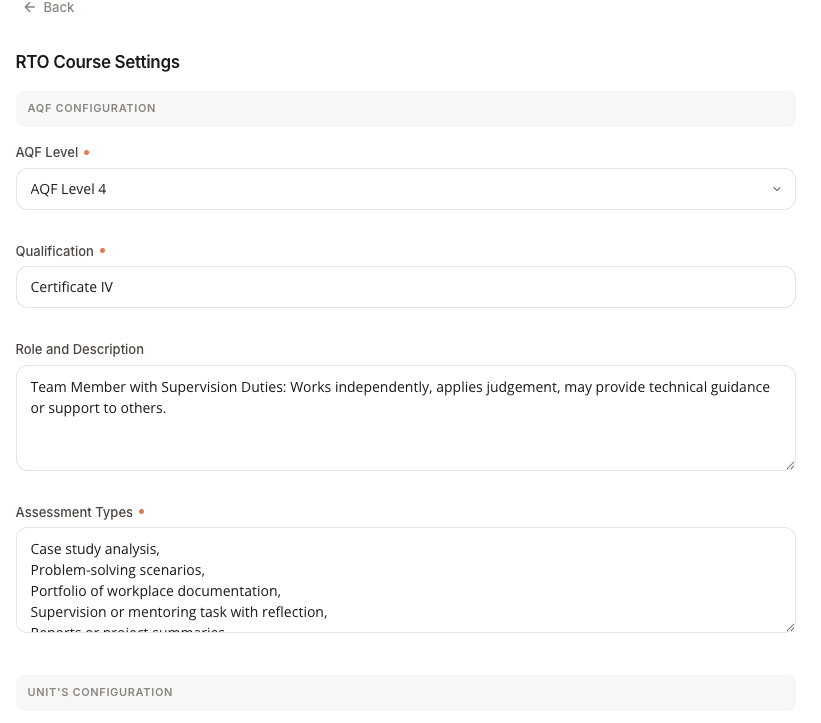
Coursebox will begin reading your resources and open the RTO Course Settings page. This is where you confirm the qualification context and learner information that will shape the generated package.
AQF Configuration
AQF Level — Select the Australian Qualifications Framework level (e.g. AQF Level 4).
Qualification — Enter the qualification name (e.g. Certificate IV).
Role and Description — Describe the role the learner is being trained for. For example: Team Member with Supervision Duties: Works independently, applies judgement, may provide technical guidance or support to others.
Assessment Types — List the assessment methods you'll use. For example: case study analysis, problem-solving scenarios, portfolio of workplace documentation, supervision or mentoring task with reflection, reports or project summaries.
Unit's Configuration
While you complete this section, Coursebox shows Reading resources… as it interprets the unit you uploaded and pre-fills fields where it can.
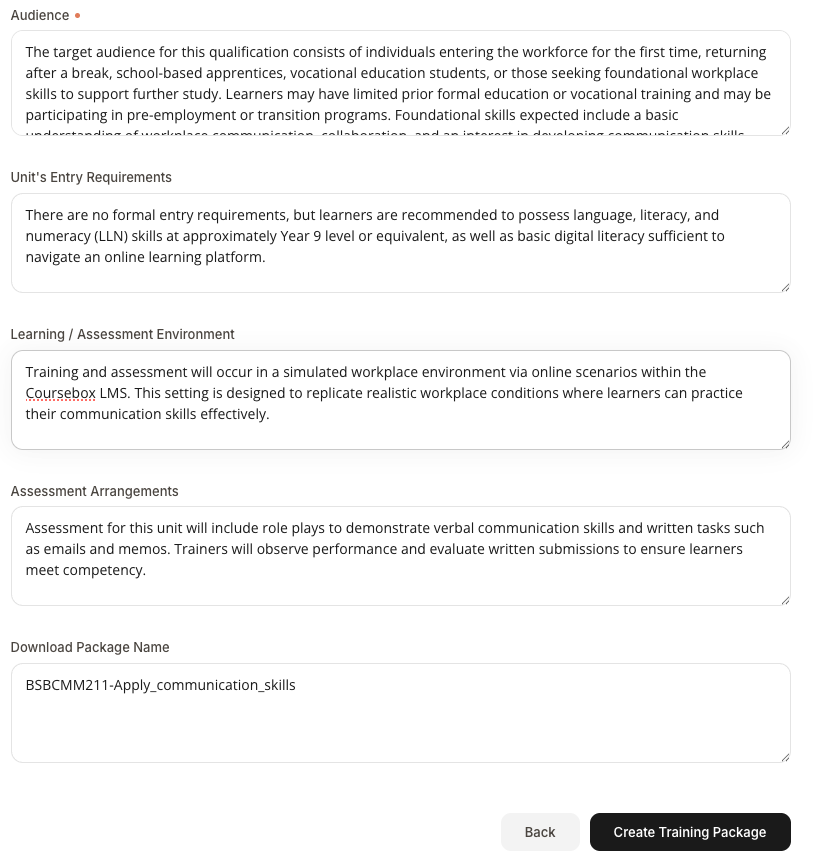
Audience — Describe your learner cohort: their background, experience level, and learning needs. You can draw on the Target Group or related sections of the Unit of Competency. Example: The target audience for this qualification consists of individuals entering the workforce for the first time, returning after a break, school-based apprentices, vocational education students, or those seeking foundational workplace skills to support further study…
Unit's Entry Requirements — Note any prerequisites. For example: There are no formal entry requirements, but learners are recommended to possess language, literacy, and numeracy (LLN) skills at approximately Year 9 level or equivalent, as well as basic digital literacy sufficient to navigate an online learning platform.
Learning / Assessment Environment — Describe where training and assessment will take place. For example: Training and assessment will occur in a simulated workplace environment via online scenarios within the Coursebox LMS…
Assessment Arrangements — Summarise how assessment will be conducted. For example: Assessment for this unit will include role plays to demonstrate verbal communication skills and written tasks such as emails and memos. Trainers will observe performance and evaluate written submissions to ensure learners meet competency.
Download Package Name — Set the filename used when the completed package is exported (e.g.
BSBCMM211-Apply_communication_skills).
Step 4: Generate the training package
Once your settings look right, click Create Training Package at the bottom of the page. Coursebox will build a course structure mapped to the unit's elements, performance criteria, and assessment requirements, ready for you to review, refine, and enrich with multimedia, activities, and assessments.
Use the Back button at any point if you need to revise the URL, files, or settings before generating.
Tips for better results
- Use the Application section of the Unit of Competency as the basis for your role description and audience notes. It captures the purpose and context of the unit in language you can reuse.
- Upload your TAS if you have one. It gives Coursebox more signal about how your RTO actually delivers and assesses the unit, which produces a more tailored package.
- Be specific about your learners. A detailed audience description (prior experience, work context, digital literacy, LLN level) leads to more appropriate activities and assessments.
- Check alignment after generation. Review the outline against the unit's elements and performance criteria, and adjust any sections that need closer mapping before publishing to your learners.